

bun build CLI command or the Bun.build() JavaScript API.
At a Glance
- JS API:
await Bun.build({ entrypoints, outdir }) - CLI:
bun build <entry> --outdir ./out - Watch:
--watchfor incremental rebuilds - Targets:
--target browser|bun|node - Formats:
--format esm|cjs|iife(experimental for cjs/iife)
- JavaScript
- CLI
build.ts

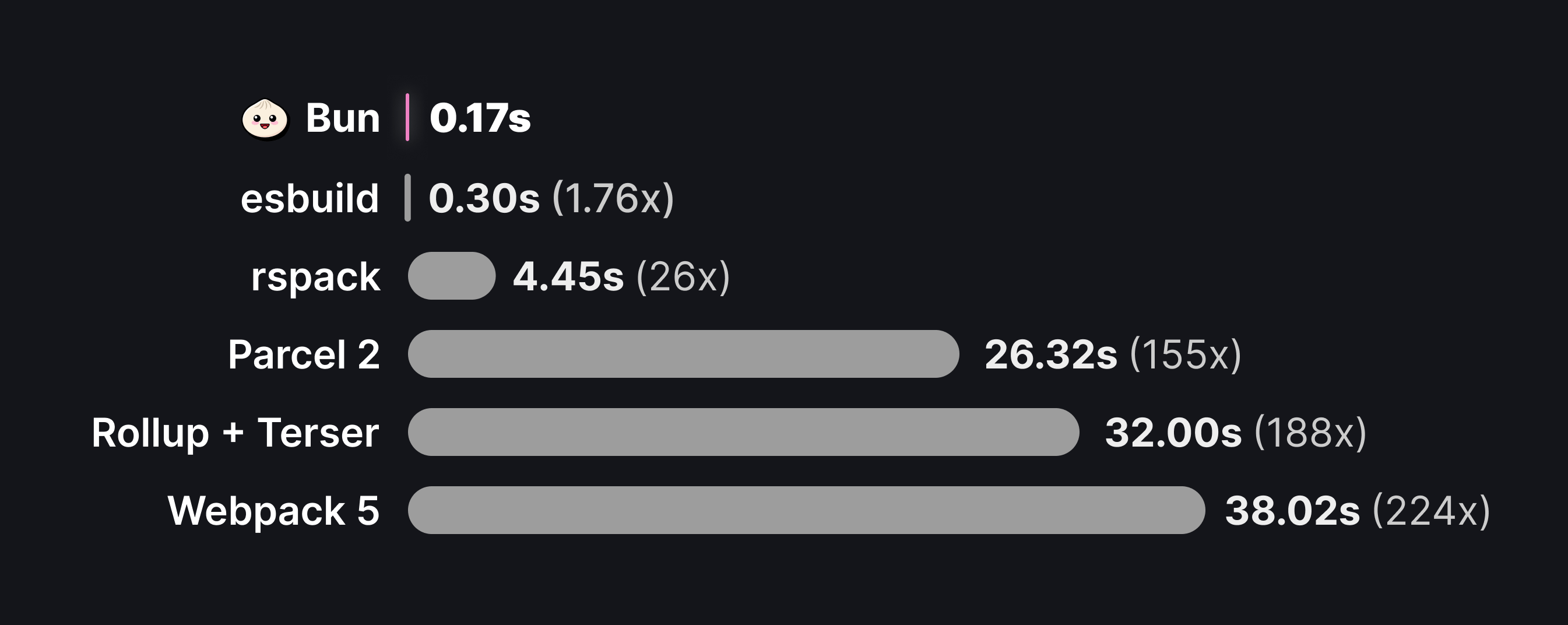
Why bundle?
The bundler is a key piece of infrastructure in the JavaScript ecosystem. As a brief overview of why bundling is so important:- Reducing HTTP requests. A single package in
node_modulesmay consist of hundreds of files, and large applications may have dozens of such dependencies. Loading each of these files with a separate HTTP request becomes untenable very quickly, so bundlers are used to convert our application source code into a smaller number of self-contained “bundles” that can be loaded with a single request. - Code transforms. Modern apps are commonly built with languages or tools like TypeScript, JSX, and CSS modules, all of which must be converted into plain JavaScript and CSS before they can be consumed by a browser. The bundler is the natural place to configure these transformations.
- Framework features. Frameworks rely on bundler plugins & code transformations to implement common patterns like file-system routing, client-server code co-location (think
getServerSidePropsor Remix loaders), and server components. - Full-stack Applications. Bun’s bundler can handle both server and client code in a single command, enabling optimized production builds and single-file executables. With build-time HTML imports, you can bundle your entire application — frontend assets and backend server — into a single deployable unit.
The Bun bundler is not intended to replace
tsc for typechecking or generating type declarations.Basic example
Let’s build our first bundle. You have the following two files, which implement a client-side rendered React app.index.tsx is the “entrypoint” to our application. Commonly, this will be a script that performs some side effect, like starting a server or—in this case—initializing a React root. Because we’re using TypeScript & JSX, we need to bundle our code before it can be sent to the browser.
To create our bundle:
entrypoints, Bun will generate a new bundle. This bundle will be written to disk in the ./out directory (as resolved from the current working directory). After running the build, the file system looks like this:
file system
out/index.js will look something like this:
out/index.js

Watch mode
Like the runtime and test runner, the bundler supports watch mode natively.terminal
Content types
Like the Bun runtime, the bundler supports an array of file types out of the box. The following table breaks down the bundler’s set of standard “loaders”. Refer to Bundler > File types for full documentation.Assets
If the bundler encounters an import with an unrecognized extension, it treats the imported file as an external file. The referenced file is copied as-is intooutdir, and the import is resolved as a path to the file.
naming and publicPath.
Refer to the Bundler > Loaders page for more complete documentation on the file loader.
Plugins
The behavior described in this table can be overridden or extended with plugins. Refer to the Bundler > Loaders page for complete documentation.API
entrypoints
Required An array of paths corresponding to the entrypoints of our application. One bundle will be generated for each entrypoint.- JavaScript
- CLI
build.ts
files
A map of file paths to their contents for in-memory bundling. This allows you to bundle virtual files that don’t exist on disk, or override the contents of files that do exist. This option is only available in the JavaScript API. File contents can be provided as astring, Blob, TypedArray, or ArrayBuffer.
Bundle entirely from memory
You can bundle code without any files on disk by providing all sources viafiles:
build.ts
files map, the current working directory is used as the root.
Override files on disk
In-memory files take priority over files on disk. This lets you override specific files while keeping the rest of your codebase unchanged:build.ts
Mix disk and virtual files
Real files on disk can import virtual files, and virtual files can import real files:build.ts
outdir
The directory where output files will be written.- JavaScript
- CLI
build.ts
outdir is not passed to the JavaScript API, bundled code will not be written to disk. Bundled files are returned in an array of BuildArtifact objects. These objects are Blobs with extra properties; see Outputs for complete documentation.
build.ts
outdir is set, the path property on a BuildArtifact will be the absolute path to where it was written to.
target
The intended execution environment for the bundle.- JavaScript
- CLI
build.ts
browser
Default. For generating bundles that are intended for execution by a browser. Prioritizes the
"browser" export
condition when resolving imports. Importing any built-in modules, like node:events or node:path will work, but
calling some functions, like fs.readFile will not work.bun
For generating bundles that are intended to be run by the Bun runtime. In many cases, it isn’t necessary to bundle server-side code; you can directly execute the source code without modification. However, bundling your server code can reduce startup times and improve running performance. This is the target to use for building full-stack applications with build-time HTML imports, where both server and client code are bundled together.All bundles generated with
target: "bun" are marked with a special // @bun pragma, which indicates to the Bun runtime that there’s no need to re-transpile the file before execution.If any entrypoints contains a Bun shebang (#!/usr/bin/env bun) the bundler will default to target: "bun" instead of "browser".When using target: "bun" and format: "cjs" together, the // @bun @bun-cjs pragma is added and the CommonJS wrapper function is not compatible with Node.js.node
For generating bundles that are intended to be run by Node.js. Prioritizes the
"node" export condition when
resolving imports, and outputs .mjs. In the future, this will automatically polyfill the Bun global and other
built-in bun:* modules, though this is not yet implemented.format
Specifies the module format to be used in the generated bundles. Bun defaults to"esm", and provides experimental support for "cjs" and "iife".
format: “esm” - ES Module
This is the default format, which supports ES Module syntax including top-level await,import.meta, and more.
- JavaScript
- CLI
build.ts
format to "esm" and make sure your <script type="module"> tag has type="module" set.
format: “cjs” - CommonJS
To build a CommonJS module, setformat to "cjs". When choosing "cjs", the default target changes from "browser" (esm) to "node" (cjs). CommonJS modules transpiled with format: "cjs", target: "node" can be executed in both Bun and Node.js (assuming the APIs in use are supported by both).
- JavaScript
- CLI
build.ts
format: “iife” - IIFE
TODO: document IIFE once we support globalNames.jsx
Configure JSX transform behavior. Allows fine-grained control over how JSX is compiled.
Classic runtime example (uses factory and fragment):
importSource):
splitting
Whether to enable code splitting.- JavaScript
- CLI
build.ts
true, the bundler will enable code splitting. When multiple entrypoints both import the same file, module, or set of files/modules, it’s often useful to split the shared code into a separate bundle. This shared bundle is known as a chunk. Consider the following files:
entry-a.ts and entry-b.ts with code-splitting enabled:
- JavaScript
- CLI
build.ts
file system
chunk-2fce6291bf86559d.js file contains the shared code. To avoid collisions, the file name automatically includes a content hash by default. This can be customized with naming.
plugins
A list of plugins to use during bundling.build.ts
env
Controls how environment variables are handled during bundling. Internally, this usesdefine to inject environment variables into the bundle, but makes it easier to specify the environment variables to inject.
env: “inline”
Injects environment variables into the bundled output by convertingprocess.env.FOO references to string literals containing the actual environment variable values.
- JavaScript
- CLI
build.ts
input.js
output.js
env: “PUBLIC_*” (prefix)
Inlines environment variables matching the given prefix (the part before the* character), replacing process.env.FOO with the actual environment variable value. This is useful for selectively inlining environment variables for things like public-facing URLs or client-side tokens, without worrying about injecting private credentials into output bundles.
- JavaScript
- CLI
build.ts
terminal
index.tsx
output.js
env: “disable”
Disables environment variable injection entirely.sourcemap
Specifies the type of sourcemap to generate.- JavaScript
- CLI
build.ts
The associated
*.js.map sourcemap will be a JSON file containing an equivalent debugId property.
minify
Whether to enable minification. Defaultfalse.
When targeting
bun, identifiers will be minified by default.- JavaScript
- CLI
build.ts
- JavaScript
- CLI
build.ts
external
A list of import paths to consider external. Defaults to[].
- JavaScript
- CLI
build.ts
index.tsx
index.tsx would generate a bundle containing the entire source code of the “zod” package. If instead, we want to leave the import statement as-is, we can mark it as external:
- JavaScript
- CLI
build.ts
out/index.js
*:
- JavaScript
- CLI
build.ts
packages
Control whether package dependencies are included to bundle or not. Possible values:bundle (default), external. Bun treats any import which path do not start with ., .. or / as package.
- JavaScript
- CLI
build.ts
naming
Customizes the generated file names. Defaults to./[dir]/[name].[ext].
- JavaScript
- CLI
build.ts
file system
file system
naming field. This field accepts a template string that is used to generate the filenames for all bundles corresponding to entrypoints. where the following tokens are replaced with their corresponding values:
[name]- The name of the entrypoint file, without the extension.[ext]- The extension of the generated bundle.[hash]- A hash of the bundle contents.[dir]- The relative path from the project root to the parent directory of the source file.
We can combine these tokens to create a template string. For instance, to include the hash in the generated bundle names:
- JavaScript
- CLI
build.ts
file system
naming field, it is used only for bundles that correspond to entrypoints. The names of chunks and copied assets are not affected. Using the JavaScript API, separate template strings can be specified for each type of generated file.
- JavaScript
- CLI
build.ts
root
The root directory of the project.- JavaScript
- CLI
build.ts
file system
pages directory:
- JavaScript
- CLI
file system
pages directory is the first common ancestor of the entrypoint files, it is considered the project root. This means that the generated bundles live at the top level of the out directory; there is no out/pages directory.
This behavior can be overridden by specifying the root option:
- JavaScript
- CLI
. as root, the generated file structure will look like this:
publicPath
A prefix to be appended to any import paths in bundled code. In many cases, generated bundles will contain no import statements. After all, the goal of bundling is to combine all of the code into a single file. However there are a number of cases with the generated bundles will contain import statements.- Asset imports — When importing an unrecognized file type like
*.svg, the bundler defers to the file loader, which copies the file intooutdiras is. The import is converted into a variable - External modules — Files and modules can be marked as external, in which case they will not be included in the bundle. Instead, the import statement will be left in the final bundle.
- Chunking. When
splittingis enabled, the bundler may generate separate “chunk” files that represent code that is shared among multiple entrypoints.
publicPath will prefix all file paths with the specified value.
- JavaScript
- CLI
build.ts
out/index.js
define
A map of global identifiers to be replaced at build time. Keys of this object are identifier names, and values are JSON strings that will be inlined.- JavaScript
- CLI
build.ts
loader
A map of file extensions to built-in loader names. Use this to customize how certain files are loaded.- JavaScript
- CLI
build.ts
banner
A banner to be added to the final bundle, this can be a directive like"use client" for react or a comment block such as a license for the code.
- JavaScript
- CLI
build.ts
footer
A footer to be added to the final bundle. This can be a comment block for a license or a fun easter egg.- JavaScript
- CLI
build.ts
drop
Remove function calls from a bundle. For example,--drop=console will remove all calls to console.log. Arguments to calls will also be removed, regardless of if those arguments may have side effects. Dropping debugger will remove all debugger statements.
- JavaScript
- CLI
build.ts
features
Enable compile-time feature flags for dead-code elimination. This provides a way to conditionally include or exclude code paths at bundle time usingimport { feature } from "bun:bundle".
app.ts
- JavaScript
- CLI
build.ts
feature() function is replaced with true or false at bundle time. Combined with minification, unreachable code is eliminated:
Input
Output (with --feature PREMIUM --minify)
Output (without --feature PREMIUM, with --minify)
feature()requires a string literal argument — dynamic values are not supported- The
bun:bundleimport is completely removed from the output - Works with
bun build,bun run, andbun test - Multiple flags can be enabled:
--feature FLAG_A --feature FLAG_B - For type safety, augment the
Registryinterface to restrictfeature()to known flags (see below)
- Platform-specific code (
feature("SERVER")vsfeature("CLIENT")) - Environment-based features (
feature("DEVELOPMENT")) - Gradual feature rollouts
- A/B testing variants
- Paid tier features
feature() accepts any string. To get autocomplete and catch typos at compile time, create an env.d.ts file (or add to an existing .d.ts) and augment the Registry interface:
env.d.ts
tsconfig.json (e.g., "include": ["src", "env.d.ts"]). Now feature() only accepts those flags, and invalid strings like feature("TYPO") become type errors.
optimizeImports
Skip parsing unused submodules of barrel files (re-export index files). When you import only a few named exports from a large library, normally the bundler parses every file the barrel re-exports. WithoptimizeImports, only the submodules you actually use are parsed.
build.ts
import { Button } from 'antd' normally parses all ~3000 modules that antd/index.js re-exports. With optimizeImports: ['antd'], only the Button submodule is parsed.
This works for pure barrel files — files where every named export is a re-export (export { X } from './x'). If a barrel file has any local exports (export const foo = ...), or if any importer uses import *, all submodules are loaded.
export * re-exports are always loaded (never deferred) to avoid circular resolution issues. Only named re-exports (export { X } from './x') that aren’t used by any importer are deferred.
Automatic mode: Packages with "sideEffects": false in their package.json get barrel optimization automatically — no optimizeImports config needed. Use optimizeImports for packages that don’t have this field.
Plugins: Resolve and load plugins work correctly with barrel optimization. Deferred submodules go through the plugin pipeline when they are eventually loaded.
metafile
Generate metadata about the build in a structured format. The metafile contains information about all input files, output files, their sizes, imports, and exports. This is useful for:- Bundle analysis: Understand what’s contributing to bundle size
- Visualization: Feed into tools like esbuild’s bundle analyzer or other visualization tools
- Dependency tracking: See the full import graph of your application
- CI integration: Track bundle size changes over time
- JavaScript
- CLI
build.ts
Markdown metafile
Use--metafile-md to generate a markdown metafile, which is LLM-friendly and readable in the terminal:
terminal
--metafile and --metafile-md can be used together:
terminal
metafile option formats
In the JavaScript API, metafile accepts several forms:
build.ts
Outputs
TheBun.build function returns a Promise<BuildOutput>, defined as:
build.ts
outputs array contains all the files that were generated by the build. Each artifact implements the Blob interface.
build.ts
Similar to
BunFile, BuildArtifact objects can be passed directly into new Response().
build.ts
BuildArtifact object to make debugging easier.
Bytecode
Thebytecode: boolean option can be used to generate bytecode for any JavaScript/TypeScript entrypoints. This can greatly improve startup times for large applications. Requires "target": "bun" and is dependent on a matching version of Bun.
- CommonJS: Works with or without
compile: true. Generates a.jscfile alongside each entrypoint. - ESM: Requires
compile: true. Bytecode and module metadata are embedded in the standalone executable.
format, bytecode defaults to CommonJS.
- JavaScript
- CLI
build.ts
Executables
Bun supports “compiling” a JavaScript/TypeScript entrypoint into a standalone executable. This executable contains a copy of the Bun binary.terminal
Logs and errors
On failure,Bun.build returns a rejected promise with an AggregateError. This can be logged to the console for pretty printing of the error list, or programmatically read with a try/catch block.
build.ts
Bun.build call instead.
Each item in error.errors is an instance of BuildMessage or ResolveMessage (subclasses of Error), containing detailed information for each error.
build.ts
logs property, which contains bundler warnings and info messages.
build.ts
Reference
Typescript Definitions
CLI Usage
General Configuration
boolean
Set
NODE_ENV=production and enable minificationboolean
Use a bytecode cache when compiling
string
default:"browser"
Intended execution environment for the bundle. One of
browser, bun, or nodestring
Pass custom resolution conditions
string
default:"disable"
Inline environment variables into the bundle as
process.env.$. To inline variables matching a
prefix, use a glob like FOO_PUBLIC_*Output & File Handling
string
default:"dist"
Output directory (used when building multiple entry points)
string
Write output to a specific file
string
default:"none"
Generate source maps. One of
linked, inline, external, or nonestring
Add a banner to the output (e.g.
“use client” for React Server Components)Add a footer to the output (e.g.
// built with bun!)string
default:"esm"
Module format of the output bundle. One of
esm, cjs, or iife. Defaults to
cjs when —bytecode is used.File Naming
string
default:"[dir]/[name].[ext]"
Customize entry point filenames
string
default:"[name]-[hash].[ext]"
Customize chunk filenames
string
default:"[name]-[hash].[ext]"
Customize asset filenames
Bundling Options
string
Root directory used when bundling multiple entry points
boolean
Enable code splitting for shared modules
string
Prefix to be added to import paths in bundled code
string
Exclude modules from the bundle (supports wildcards). Alias:
-estring
default:"bundle"
How to treat dependencies:
external or bundleboolean
Transpile only — do not bundle
boolean
Chunk CSS files together to reduce duplication (only when multiple entry points import CSS)
Minification & Optimization
boolean
default:"true"
Re-emit Dead Code Elimination annotations. Disabled when
—minify-whitespace is usedboolean
Enable all minification options
boolean
Minify syntax and inline constants
boolean
Minify whitespace
boolean
Minify variable and function identifiers
boolean
Preserve original function and class names when minifying
Development Features
boolean
Rebuild automatically when files change
boolean
Don’t clear the terminal when rebuilding with
—watchboolean
Enable React Fast Refresh transform (for development testing)
boolean
Run the React Compiler over
.jsx/.tsx files, automatically memoizing components and hooks. Output mode is derived
from --target (browser → client, bun/node → ssr). Experimental.Standalone Executables
boolean
Generate a standalone Bun executable containing the bundle. Implies
—productionstring
Prepend arguments to the standalone executable’s
execArgvWindows Executable Details
boolean
Prevent a console window from opening when running a compiled Windows executable
string
Set an icon for the Windows executable
string
Set the Windows executable product name
string
Set the Windows executable company name
string
Set the Windows executable version (e.g.
1.2.3.4)string
Set the Windows executable description
string
Set the Windows executable copyright notice
Experimental & App Building
boolean
(EXPERIMENTAL) Build a web app for production using Bun Bake
boolean
(EXPERIMENTAL) Enable React Server Components
boolean
When
—app is set, dump all server files to disk even for static buildsboolean
When
—app is set, disable all minification