

Basic Usage
terminal
bun CLI contains a Node.js-compatible package manager designed to be a dramatically faster replacement for npm, yarn, and pnpm. It’s a standalone tool that will work in pre-existing Node.js projects; if your project has a package.json, bun install can help you speed up your workflow.
⚡️ 25x faster — Switch from 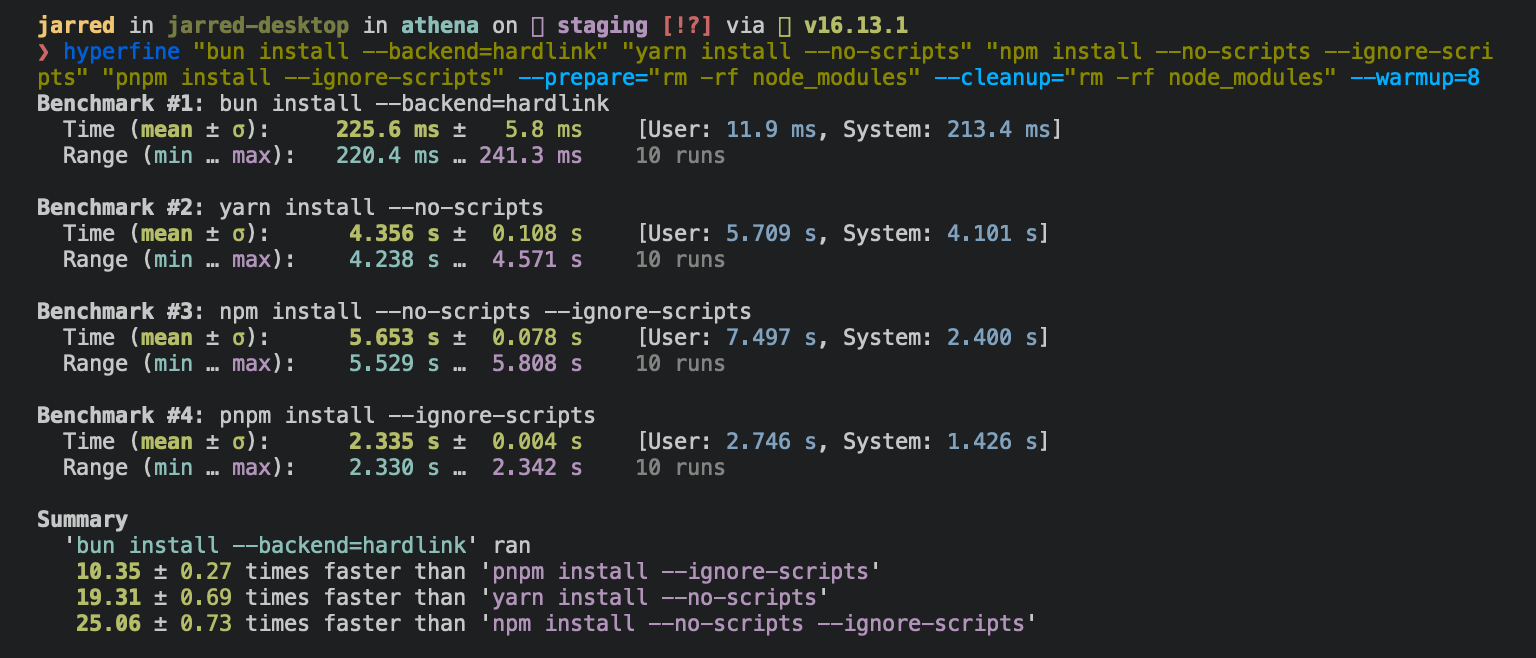
npm install to bun install in any Node.js project to make your installations up to 25x faster.terminal
bun install will:
- Install all
dependencies,devDependencies, andoptionalDependencies. Bun will installpeerDependenciesby default. - Run your project’s
{pre|post}installand{pre|post}preparescripts at the appropriate time. For security reasons Bun does not execute lifecycle scripts of installed dependencies. - Write a
bun.locklockfile to the project root.
Logging
To modify logging verbosity:terminal
Lifecycle scripts
Unlike other npm clients, Bun does not execute arbitrary lifecycle scripts likepostinstall for installed dependencies. Executing arbitrary scripts represents a potential security risk.
To tell Bun to allow lifecycle scripts for a particular package, add the package to trustedDependencies in your package.json.
package.json
my-trusted-package.
Lifecycle scripts will run in parallel during installation. To adjust the maximum number of concurrent scripts, use the --concurrent-scripts flag. The default is two times the reported cpu count or GOMAXPROCS.
terminal
esbuild, sharp, etc.) by determining which scripts need to run. To disable these optimizations:
terminal
Workspaces
Bun supports"workspaces" in package.json. For complete documentation refer to Package manager > Workspaces.
package.json
Installing dependencies for specific packages
In a monorepo, you can install the dependencies for a subset of packages using the--filter flag.
terminal
bun install, refer to Package Manager > Filtering
Overrides and resolutions
Bun supports npm’s"overrides" and Yarn’s "resolutions" in package.json. These are mechanisms for specifying a version range for metadependencies—the dependencies of your dependencies. Refer to Package manager > Overrides and resolutions for complete documentation.
package.json
Global packages
To install a package globally, use the-g/--global flag. Typically this is used for installing command-line tools.
terminal
Production mode
To install in production mode (i.e. withoutdevDependencies or optionalDependencies):
terminal
--frozen-lockfile. This will install the exact versions of each package specified in the lockfile. If your package.json disagrees with bun.lock, Bun will exit with an error. The lockfile will not be updated.
terminal
bun.lock, refer to Package manager > Lockfile.
Omitting dependencies
To omit dev, peer, or optional dependencies use the--omit flag.
terminal
Dry run
To perform a dry run (i.e. don’t actually install anything):terminal
Non-npm dependencies
Bun supports installing dependencies from Git, GitHub, and local or remotely-hosted tarballs. For complete documentation refer to Package manager > Git, GitHub, and tarball dependencies.package.json
Installation strategies
Bun supports two package installation strategies that determine how dependencies are organized innode_modules:
Hoisted installs
The traditional npm/Yarn approach that flattens dependencies into a sharednode_modules directory:
terminal
Isolated installs
A pnpm-like approach that creates strict dependency isolation to prevent phantom dependencies:terminal
node_modules/.bun/ with symlinks in the top-level node_modules. This ensures packages can only access their declared dependencies.
Default strategy
The default linker strategy depends on whether you’re starting fresh or have an existing project:- New workspaces/monorepos:
isolated(prevents phantom dependencies) - New single-package projects:
hoisted(traditional npm behavior) - Existing projects (made pre-v1.3.2):
hoisted(preserves backward compatibility)
configVersion field in your lockfile. For a detailed explanation, see Package manager > Isolated installs.
Minimum release age
To protect against supply chain attacks where malicious packages are quickly published, you can configure a minimum age requirement for npm packages. Package versions published more recently than the specified threshold (in seconds) will be filtered out during installation.terminal
bunfig.toml:
bunfig.toml
- Only affects new package resolution - existing packages in
bun.lockremain unchanged - All dependencies (direct and transitive) are filtered to meet the age requirement when being resolved
- When versions are blocked by the age gate, a stability check detects rapid bugfix patterns
- If multiple versions were published close together just outside your age gate, it extends the filter to skip those potentially unstable versions and selects an older, more mature version
- Searches up to 7 days after the age gate, however if still finding rapid releases it ignores stability check
- Exact version requests (like
package@1.1.1) still respect the age gate but bypass the stability check
- Versions without a
timefield are treated as passing the age check (npm registry should always provide timestamps)
Configuration
Configuring bun install with bunfig.toml
bunfig.toml is searched for in the following paths on bun install, bun remove, and bun add:
$XDG_CONFIG_HOME/.bunfig.tomlor$HOME/.bunfig.toml./bunfig.toml
bunfig.toml is optional. Bun tries to be zero configuration in general, but that’s not always possible. The default behavior of bun install can be configured in bunfig.toml. The default values are shown below.
bunfig.toml
Configuring with environment variables
Environment variables have a higher priority thanbunfig.toml.
Bun always tries to use the fastest available installation method for the target platform. On macOS, that’s
clonefile and on Linux, that’s hardlink. You can change which installation method is used with the --backend flag. When unavailable or on error, clonefile and hardlink fallsback to a platform-specific implementation of copying files.
Bun stores installed packages from npm in ~/.bun/install/cache/${name}@${version}. Note that if the semver version has a build or a pre tag, it is replaced with a hash of that value instead. This is to reduce the chances of errors from long file paths, but unfortunately complicates figuring out where a package was installed on disk.
When the node_modules folder exists, before installing, Bun checks if the "name" and "version" in package/package.json in the expected node_modules folder matches the expected name and version. This is how it determines whether it should install. It uses a custom JSON parser which stops parsing as soon as it finds "name" and "version".
When a bun.lock doesn’t exist or package.json has changed dependencies, tarballs are downloaded & extracted eagerly while resolving.
When a bun.lock exists and package.json hasn’t changed, Bun downloads missing dependencies lazily. If the package with a matching name & version already exists in the expected location within node_modules, Bun won’t attempt to download the tarball.
CI/CD
Use the officialoven-sh/setup-bun action to install bun in a GitHub Actions pipeline:
.github/workflows/release.yml
bun ci to fail the build if the package.json is out of sync with the lockfile:
terminal
bun install --frozen-lockfile. It installs exact versions from bun.lock and fails if package.json doesn’t match the lockfile. To use bun ci or bun install --frozen-lockfile, you must commit bun.lock to version control.
And instead of running bun install, run bun ci.
.github/workflows/release.yml
Platform-specific dependencies?
bun stores normalizedcpu and os values from npm in the lockfile, along with the resolved packages. It skips downloading, extracting, and installing packages disabled for the current target at runtime. This means the lockfile won’t change between platforms/architectures even if the packages ultimately installed do change.
--cpu and --os flags
You can override the target platform for package selection:
--cpu: arm64, x64, ia32, ppc64, s390x
Accepted values for --os: linux, darwin, win32, freebsd, openbsd, sunos, aix
Peer dependencies?
Peer dependencies are handled similarly to yarn.bun install will automatically install peer dependencies. If the dependency is marked optional in peerDependenciesMeta, an existing dependency will be chosen if possible.
Lockfile
bun.lock is Bun’s lockfile format. See our blogpost about the text lockfile.
Prior to Bun 1.2, the lockfile was binary and called bun.lockb. Old lockfiles can be upgraded to the new format by running bun install --save-text-lockfile --frozen-lockfile --lockfile-only, and then deleting bun.lockb.
Cache
To delete the cache:Platform-specific backends
bun install uses different system calls to install dependencies depending on the platform. This is a performance optimization. You can force a specific backend with the --backend flag.
hardlink is the default backend on Linux. Benchmarking showed it to be the fastest on Linux.
clonefile is the default backend on macOS. Benchmarking showed it to be the fastest on macOS. It is only available on macOS.
clonefile_each_dir is similar to clonefile, except it clones each file individually per directory. It is only available on macOS and tends to perform slower than clonefile. Unlike clonefile, this does not recursively clone subdirectories in one system call.
copyfile is the fallback used when any of the above fail, and is the slowest. on macOS, it uses fcopyfile() and on linux it uses copy_file_range().
symlink is typically only used for file: dependencies (and eventually link:) internally. To prevent infinite loops, it skips symlinking the node_modules folder.
If you install with --backend=symlink, Node.js won’t resolve node_modules of dependencies unless each dependency has its own node_modules folder or you pass --preserve-symlinks to node or bun. See Node.js documentation on --preserve-symlinks.
npm registry metadata
Bun uses a binary format for caching NPM registry responses. This loads much faster than JSON and tends to be smaller on disk. You will see these files in~/.bun/install/cache/*.npm. The filename pattern is ${hash(packageName)}.npm. It’s a hash so that extra directories don’t need to be created for scoped packages.
Bun’s usage of Cache-Control ignores Age. This improves performance, but means bun may be about 5 minutes out of date to receive the latest package version metadata from npm.
pnpm migration
Bun automatically migrates projects from pnpm to bun. When apnpm-lock.yaml file is detected and no bun.lock file exists, Bun will automatically migrate the lockfile to bun.lock during installation. The original pnpm-lock.yaml file remains unmodified.
terminal
bun.lock is absent. There is currently no opt-out flag for pnpm migration.
The migration process handles:
Lockfile Migration
- Converts
pnpm-lock.yamltobun.lockformat - Preserves package versions and resolution information
- Maintains dependency relationships and peer dependencies
- Handles patched dependencies with integrity hashes
Workspace Configuration
When apnpm-workspace.yaml file exists, Bun migrates workspace settings to your root package.json:
pnpm-workspace.yaml
workspaces field in package.json:
package.json
Catalog Dependencies
Dependencies using pnpm’scatalog: protocol are preserved:
package.json
Configuration Migration
The following pnpm configuration is migrated from bothpnpm-lock.yaml and pnpm-workspace.yaml:
- Overrides: Moved from
pnpm.overridesto root-leveloverridesinpackage.json - Patched Dependencies: Moved from
pnpm.patchedDependenciesto root-levelpatchedDependenciesinpackage.json - Workspace Overrides: Applied from
pnpm-workspace.yamlto rootpackage.json
Requirements
- Requires pnpm lockfile version 7 or higher
- Workspace packages must have a
namefield in theirpackage.json - All catalog entries referenced by dependencies must exist in the catalogs definition
pnpm-lock.yaml and pnpm-workspace.yaml files.
CLI Usage
terminal
General Configuration
string
Specify path to config file (bunfig.toml)
string
Set a specific cwd
Dependency Scope & Management
boolean
Don’t install devDependencies
boolean
Don’t update package.json or save a lockfile
boolean
default:"true"
Save to package.json
string
Exclude ‘dev’, ‘optional’, or ‘peer’ dependencies from install
boolean
Only add dependencies to package.json if they are not already present
Dependency Type & Versioning
boolean
Add dependency to “devDependencies”
boolean
Add dependency to “optionalDependencies”
boolean
Add dependency to “peerDependencies”
boolean
Add the exact version instead of the ^range
Lockfile Control
boolean
Write a yarn.lock file (yarn v1)
boolean
Disallow changes to lockfile
boolean
Save a text-based lockfile
boolean
Generate a lockfile without installing dependencies
Network & Registry Settings
string
Provide a Certificate Authority signing certificate
string
File path to Certificate Authority signing certificate
string
Use a specific registry by default, overriding .npmrc, bunfig.toml and environment variables
Installation Process Control
boolean
Don’t install anything
boolean
Always request the latest versions from the registry & reinstall all dependencies
boolean
Install globally
string
default:"clonefile"
Platform-specific optimizations: “clonefile”, “hardlink”, “symlink”, “copyfile”
string
Install packages for the matching workspaces
boolean
Analyze & install all dependencies of files passed as arguments recursively
Caching Options
string
Store & load cached data from a specific directory path
boolean
Ignore manifest cache entirely
Output & Logging
boolean
Don’t log anything
boolean
Excessively verbose logging
boolean
Disable the progress bar
boolean
Don’t print a summary
Security & Integrity
boolean
Skip verifying integrity of newly downloaded packages
boolean
Add to trustedDependencies in the project’s package.json and install the package(s)
Concurrency & Performance
number
default:"5"
Maximum number of concurrent jobs for lifecycle scripts
number
default:"48"
Maximum number of concurrent network requests
Lifecycle Script Management
boolean
Skip lifecycle scripts in the project’s package.json (dependency scripts are never run)
Help Information
boolean
Print this help menu